Making Anims for NaughtyZOI - Assistance Thread (With WIP Tutorial)
Special message for The Broken Chatbox! I’m posting this in several places and will try and remember to sync information. Don’t forget that we also have a Discord and Stoat server people can ask for assistance in!
I’ve talked with a lot of animators already, but it’s fairly common for people to ask “how???” when we discuss creating animations for the NaughtyZOI framework. So, following a suggestion I’d received, I’m making a public thread for information and asking questions related to making animations/content for NaughtyZOI! A lot of current discussions have been buried in Discord, so this acts as a public way for people to ask questions and for us to post and forward information! I’ll try and remember to update the thread with new major information, linking to the source if I can, and try to maintain the thread between different places. Feel free to ask questions and read wherever you feel comfortable!~
Note : I have a WIP tutorial I’ll be posting in the future which covers some stuff, I’m having to rewrite/remake sections as the modkit has evolved and made things easier and easier. I’ll link to it here when it’s posted!~ (I’ll also use this thread as a way to get suggestions for things to add to the tutorial!) This post will contain a truncated/simplified version of the guide for now.
Note : Going to have a bit of pre-amble here, feel free to skip to “The Animation Player - Info to know” section if you just want information related to creating animations.
What is NaughtyZOI (N-ZOI)
I won’t spend too much time here, but may as well give a quick overview. NaughtyZOI is an adult content framework based on my previous work. SCML (Spirit’s Common Mod Library) is used for the backend while NaughtyZOI connects those systems to the game and adds new gameplay systems and interactions on-top. NaughtyZOI features a unique animation player specifically designed with erotic animations in mind, erotic interactions and stats added to the game, and an API/Interactions/Stats for use by other mods. NaughtyZOI is built from the ground up as a framework with tools and content usable by other creatives to expand the NaughtyZOI and erotic content ecosystem.
NaughtyZOI features….
- A custom built animation player for erotic interactions with dynamic conditions and separate orgasm support
- Custom stat tracking and systems which can affect animation playback such as libido/arousal/pleasure/experience
- Tools for animators to make complex animations easier to put together and allow less hard-coded features such as sound support
- integrated (and optional) gameplay features built directly into the framework with an API, interactions/conditions, and features others can use in their own mods
- No Generative AI! NaughtyZOI and all first party content and features are built without the use of generative AI! While this may not be as relevant to inZOI, it’s still important to note that NaughtyZOI is built by human creativity, for human creativity!~
- and more!~ =^-^=
Ethics and Design
In a time overtaken by bad-faith actors and generative AI slop, it’s become increasingly important for projects and creatives to take positions for the health of their projects. Whether you agree or disagree with these points, I prefer to be transparent in how things are developed and outline the design goals of my projects, including NaughtyZOI. I know some creatives find these points important, others don’t, can skip if you’re in the latter category.
No Generative AI
NaughtyZOI and all first party dependencies and content are created by a human and no generative AI output is included in the mod or assets. Third party mods which interact with NaughtyZOI, such as gameplay or animation mods, may use gen AI if they wish but we do encourage gen AI usage to be properly disclosed. Contributions to the main NaughtyZOI/SCML project must not contain any generative AI.
Fiction is Fiction
NaughtyZOI does not take ‘moral stances’ on content people may want to produce or utilize the framework for, as long as no real-world harm is caused, NaughtyZOI won’t get in the way.
Extendable, Accessible, Modular
The optional gameplay features introduced by NaughtyZOI will always try and utilize an API or accessible feature other modders could use whenever possible. If a new gameplay feature is added to NaughtyZOI, new API features will be added for other modders to utilize.
Free Forever
NaughtyZOI itself is completely free with no paywalls and the usage permissions do not permit paywalled content. Paywalled mods and features cause an immense amount of harm to modding communities and ecosystems; NaughtyZOI as a project opposes those harms and is instead built as a collaborative effort for the growth and betterment of the community!
Where to Download NaughtyZOI?
NaughtyZOI is publicly available, for free, through either my creative site or within The Broken Chatbox!~
SpiritShard.com (My creative site) - https://spiritshard.com/?mode=gamemod&view=inZOI_NaughtyZOI (Note, at the time of writing, the actual NaughtyZOI page isn’t up yet but the download should still show up, sorry! I’ll get the page up soon. >.<)
The Broken Chatbox - Discord - https://discord.gg/h3vB7S4FEw
The Broken Chatbox - Forum - https://forum.thebrokenchatbox.com/t/modding-inzoi / https://forum.thebrokenchatbox.com/d/16-naughtyzoi-early-developments-thread-erotic-animation-framework-for-inzoi/47
You can support NaughtyZOI’s development through my SubscribeStar at https://subscribestar.adult/michaelpstanich
NaughtyZOI will have official uploads in a few other places as development progresses and we meet platform requirements or platforms change to allow NaughtyZOI.
NaughtyZOI Animation Creation Guide
The Animation Player - Info to know
When making content for NaughtyZOI, knowing the capabilities and how the animation player functions can help make more fluid interactions with your animations. Here’s some relevant things to keep in mind~.
- We use Unreal Engine’s native “Montage” for animation playback just like most of inZOI’s base game animations.
- NaughtyZOI features Montage Notif handling for API calls during animations! This allows a really quick way to implement certain effects, change animation state, or play sound without hard-coding them in and adhering to NaughtyZOI’s settings/systems (This feature is still being expanded, suggestions are welcome!)
- Animations need to be imported and packaged into a .pak file or inZOI native mod, however animation configuration is within its own JSON file with its own format. The format is optimized for ease of use and modularity to utilize all the features NaughtyZOI offers (Templates, including one that describes each parameter, are distributed with NaughtyZOI)
- Users are able to customize playback and change how long animations are expected to play, every scene should have at least one main looping animation to ensure playback duration is consistent
Steps Overview
For those that just need a quick list of steps, here’s a quick overview. For more details, read below this section~. ^-^
- Use the modkit to get the official skeleton asset into either Blender or Maya - https://mod-docs.playinzoi.com/docs/modkit-docs/resources/dcc-tools
- Create your SceneSlot animations and stages
- Export each SceneSlot as its own FBX to import into the ModKit
- Create a new mod for your animations in the ModKit, import your animations into the folder
- Copy the NaughtyZOI templates provided with NaughtyZOI to configure your animations
- Package your mod in the modkit and install it along with your template into the AnimConfig folder
- Test in-game!~
- Success? =^-^=
Getting Started (Set-up)
Here’s what you’ll need to get started :
- inZOI installed and updated to the latest version (NaughtyZOI will focus support on the latest version, developed on the latest English Steam release) -
- inZOI ModKit installed and updated to the latest version (you can technically use FModel and UE5.6 but we won’t cover this here) - https://store.epicgames.com/p/inzoi-modkit
- Blender or Maya for getting the Skeleton/Placeholder body, creating animations, and exporting animations (I’ll focus on Blender) - https://www.blender.org/
- An up-to-date version of NaughtyZOI’s templates, and preferably installed into your game for proper testing - https://spiritshard.com/?mode=gamemod&view=inZOI_NaughtyZOI
- A text editor, preferably with JSON syntax support such as VSCode, to edit and create the AnimConfig file
- May require Python to utilize the inZOI blender plugin and additional tools (I already had Python but needed to install additional features, will cover this later) - https://www.python.org/
- Naughty desires… ^.-
I’m going to assume everyone already has inZOI installed and updated, you’ll do that through steam as usual.
Installing the ModKit
For the ModKit, inZOI already has a proper guide in their Mod Documentation site - https://mod-docs.playinzoi.com/docs/modkit-docs/modkit/how-to/getting-started/01install - and should be sufficient if you already have an epic games account. If you don’t already have an Epic Games account (required to download the ModKit and Unreal Engine related stuffs) you can create a new account by clicking the “Sign in” button at the top of the page, then on the sign-in page click the “Create an account” that shows below the “Continue” button; this will ask for a few pieces of info and an email address then you can download the launcher and ModKit.
Blender Tools
There is a guide for the Blender tools as well, however there are some additional issues I’ll outline here.
- Follow the inZOI guide to installing the Blender/Maya tools - https://mod-docs.playinzoi.com/docs/modkit-docs/resources/dcc-tools
- (In the guide it mentions going to the add-ons page, but you can actually just click-drag the plugin’s zip file onto your Blender on 5.2+ and it’ll bring up the install prompt)
- After the tool is installed, in the top right of your default 3D viewport you’ll see a small arrow tab, click this to expand the side tools bar and you should see an entry for “inZOI”
- Clicking the new “inZOI” button will show a new small window to “Open inZOI ModKit” which opens a separate window for the Blender plugin (you don’t need the ModKit open to utilize this)
- If you get an error about missing dependencies you may need to install PySide6 with your python install (I’ll cover this in its own section, go ahead and check through that then return here)
- With the inZOI tools open you should see buttons under “Character Setup”, “Male” and “Female” will set-up the project with the male adult and female adult body and skeleton
- I highly recommend opening another Blender instance and creating a new project for your animations, then copy the mesh and skeleton into your new project to avoid the inZOI plugin interfering with your rig (I accidentally destroyed my own rig X.x)
- Once you have the bodies you’ll like to animate you can close the inZOI blender tools and do your typical animation stuffs!
PySide6 (Blender plugin doesn’t open)
If you get an error about pySide6 missing when trying to utilize the inZOI blender tools, it means whatever environment you’re utilizing doesn’t contain PySide6. The script doesn’t seem to always install the requirements, I personally had this issue likely because I already had python installed and set-up for my own development. I’m going to go over adding this to path even if that’s not typically recommended, but dealing with environments for casual use is a nightmare.
- Close Blender if it’s open
- Open a new CMD window (type into the windows search “cmd” or “command prompt”)
- Input
pip install pyside6 exactly to install to your ‘main’ python install (if you get an error, try re-installing python with “Install to Path” checked in the install process)
- Re-open Blender and try to open the tool again, will hopefully work (If not, you’ll have to input the same command but inside blender’s python tools)
Exporting and Importing Your Animation for NaughtyZOI
Once you’ve made your animations we’ll need to export them in a way that works best with the inZOI ModKit and Unreal. I recommend using FBX as they’re simple enough to work with and also allows you to use them as a backup as they can re-import into Blender should you lose your Blender source (we’ve all done it at some point X.x).
Make sure the animation you want to export is enabled on the armature
Select both the Mesh and Armature which the animation is applied to (use ctrl+click to select multiple)
With both selected, click the “File” at the top left of the Blender window, then select “Export” then “FBX (.fbx)” to open the FBX export window
Change the settings accordingly…
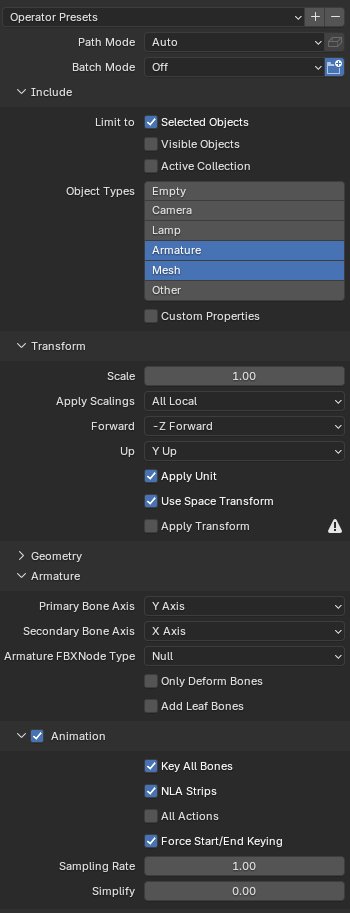
Export it wherever you’re storing your “in-between” assets, probably use a descriptive name
Repeat the export process for each of your animations
Now open the ModKit (it’ll take a while first time), if you don’t already have an animation pack project you can create a new “Empty” mod project following the inZOI guide - https://mod-docs.playinzoi.com/docs/modkit-docs/modkit/how-to/getting-started/03project
Open your mod’s folder in the bottom “content browser” panel, then drag an exported FBX file onto the panel, this will open the content importer
In the new Content Importer window that pops up, select the “Animations” button that shows under the search bar and you’ll change “Import Only Animations” toggled to “enabled” and for Skeleton you’ll want to select “SK_Base” to target the base humanoid Skeleton (Note : There’s a bug in the import panel where changing a setting toggles back to “All” so you may need to re-select the “Animations” button after changing any settings)
After you’re done configuring the animation import, click “Import” and it’ll add all the animations from the FBX files you imported into your project’s folder (If you get a “base pose” warning, don’t need to worry about that, you can remove that error by disabling mesh imports as the modkit will sometimes try and import a mesh anyways even when we told it not-to which causes the mesh to be Null/None)
Note that inZOI’s ModKit features some automatic processing that tries to import animations correctly for different targets, more experimentation is required to fully understand these processes but generally imports should be relatively painless with the automatic processing appearing to correct many common errors
Once your animations are imported they’ll be Animation Sequences, now we can start putting things together for how they’ll play in-game!
Next you’ll need to make “Montages” of your animations so they can be played in-game, right click your animation sequences we just imported and near the top under “Create”, click “Create AnimMontage” to automatically create a Montage of the animation
From the Montage you can add various triggers, logic, NaughtyZOI API Calls, or even combine and customize multiple animations; Montages are very flexible so feel free to play around with it at some point, but that’s for another tutorial
If your animation is expected to be Looping, then inside the Montage Panel, in the bottom right, there’s a “Montage Sections” tab, inside there click the box next to “Default” to have the animation loop back to “Default” whenever the animation reaches the end, making it loop (You can do other creative stuff with this as well, but we won’t cover that here)
Once you’ve got all your Montages set-up we’ll need to compile and export the mod
In the top left panels you should see your mod, hover and click the arrow at the bottom of its box and click “Create Local Mod Package”
:::::: WARNING ::::::
DO NOT PUBLISH YOUR NaughtyZOI MOD TO CURSEFORGE OR CANVAS!!!
“Adult Content” is not allowed on Curseforge or Canvas! Intentionally trying to publish such mods could lead to your account getting banned! Be careful!
I recommend just exporting your mod into your inZOI mods folder for easy and quick testing, this should be default behavior (later when testing new stuff you can export them elsewhere)
Now when you go in-game you should see your mod show up in the mods list and you can enable them there, but for NaughtyZOI to run the animations we need to actually configure them!
AnimConfig - Configuring Your Animations for NaughtyZOI
NaughtyZOI uses external “AnimConfig” files in JSON format to configure animations, so for your animations to play within the framework we’ll need to quickly set these up.
- Inside the NaughtyZOI release package should be a “JSONTemplates” folder that contains the templates for AnimConfig files, “Blank” will be an empties template you’ll copy and use for configuring your own animation, “WithExplanations” will be the template but with each entry explained as it shows up in the template, you’ll use that to read and learn what each entry actually does
- While the template looks large, only a few parameters are actually required so don’t worry, we can trim things down a lot!
How animations are configured
Before we continue, let me quickly explain how animations with NaughtyZOI works so we know what we’re actually putting together. NaughtyZOI uses “Slots”, “Stages”, and “Events” for the animation player.
- “Slots” are individual animations for one character inside a scene, in a M+F scene a “Slot” would be either the M or F character and will stay consistent through-out the Scene
- Slots are put together into an “Event” which acts as the ‘Complete’ animation, the slots are put into “Stages” that determine how the animation progresses
- Compatibility is determined by the overall requirements of the “Slots” included in an “Event”
This system allows slots to be used multiple times through-out different Events without having to re-configure or re-compile different animations, such as re-using a “doggystyle” animation for whether it’s a Male or Female partner.
Let’s cover the absolute bare-minimum to getting an animation running. We need to configure our “AnimSlot” with UniqueID, SEquipReq, IsLooping, IsErotic, AnimSet (AssetPath). Any parameter we’re not using can be removed to allow defaults to be used instead.
- First, make a copy of the “empty” verison of the template to use as your own config file
- (Remember we can remove any entry we’re not using, so for entries we skip you can either fill them out or delete the line)
- First, fill out the
PackName and PackAuthor entries, these can be whatever and are only used for display purposes and user configuration
Next we need to configure the AnimSlot section, this section is an array of slot entries we can then utilize inside Events
- UniqueID - We need to give our AnimSlot a UniqueID that will be used to reference the animation, it’s recommended to start with your screen-name so it stays unique, then name it whatever you find correct
- SEquipReq - This defines what Sexual Equipment a character needs for this to be considered a valid animation, only include what’s actually required for the animation to make sense for the best user experience
- Tags - Add some tags related to the Slot animation, Events also have tags so these tags should only be relevant to the slot and not what event they’ll be inside
- IsLooping - Whether this animation is configured to loop (like covered earlier)
- IsErotic - Whether this should be considered an Erotic interaction (builds Sexual Pleasure or sexual in nature)
Next is setting up the AnimSets inside our AnimSlot, these are different available “configurations” for what animations should play if the conditions are met. This allows us to set up different animations for different body types and configure offsets for each one if needed
- AssetPath - this is the in-game loaded path to the animation file we packaged into our mod, right click the Montage inside the ModKit you created earlier and select “Copy Reference”, should look something like
"/Script/Engine.AnimMontage'/NTEST_D884DA02/Animations/DummyAnim_CallSoloEnd.DummyAnim_CallSoloEnd'" though it’s recommended to use the truncated format which looks something like this /NTEST_D884DA02/Animations/DummyAnim_CallSoloEnd based on the previous example
- BodySexType - inZOI’s Male/Female bodies are scaled slightly differently which means playing animations on the unintended body shape could cause the animation to look strange, you can set this to Male or Female for which body you exported the animation using in Blender (note, at the time of writing NaughtyZOI’s detection for this is experimental and doesn’t always work correctly, working on it >.<)
- And… that’s it! If you have different animations for different BodyTypes you can copy this entry and create new entries, adjusting the other parameters as you see fit
Now we have one slot configured! You’ll do this for each AnimSlot you wish to add. Next we need to configure the Event! Under the AnimEvent category we’ll start by modifying the template again.
- UniqueID - Add a UniqueID for the Event, this works just like with AnimSlot
- IsErotic - Same as with Slots, whether this event should be considered Erotic (If an erotic slot is included, this will default to true)
- ActorCount - How many “Slots” for characters the animation should have, 1 for solo animations, 2 for duo, 3 for trios…
- AddTags - This is where you add the tags for the entire Scene and not just the individual animations, on the backend this will add the tags to all the slot tags when pulling the Event tags
- RequireObject - Only need this if the animation should only play on an ObjectTarget (Furniture animations)
- ObjectTarget - I won’t cover this too much here as it’s only required for ObjectTarget animations (Furniture animations), but you’ll add the ObjectID you can find in the ModKit for the given object (the same ID it shows in the Data Editor) and the offset to apply to the animation from the object’s root
Now let’s set up the stages and orgasm animations!~ For the “Stages” section of the Event is how we set-up how the animation should progress together.
- SlotAnims - Provide a list of animation that should play in the order of the slots and make sure the order stays consistent through-out the event, for example if you have a MxF animation and determine the M goes into slot 0 (the first one) then that should stay consistent through-out
- ActionTags - Define what kind of interaction is happening through the provided template, these are advanced tags used by NaughtyZOI’s systems and exposed through the API to determine stuff like what kind of interaction is taking place, where ejaculation happens, and other types of data
- OrgasmVar - If you have unique orgasm versions of animations this is where you’ll defind those for different sets, they’re set-up just like a Stage but have an additional “SlotsToOrgasm” entry to tell NaughtyZOI which animations should be orgasming for this stage to play (NaughtyZOI has a best-match system for playing orgasm animations)
Alright, now back to the rest of the Event!
- GlobalOrgasmVar - Instead of having to set the OrgasmVar of each individual animation, you can set a global stage to play for orgasms across the entire Event when no OrgasmVar is provided (typically you’ll set a global orgasm animation then define whatever unique ones you have and skip those that would just use the global one, makes configuring them much faster and easier)
- StartStage/EndStage - These are additional Stages you can define that will always play at the start/end, for Erotic animations the Start is like an “introductory” step that should play when entering an animation but not when switching positions/animations, then the End should be a post-climax style animation, these are typically also non-looping with a usually short duration
And that’s it for this Event! Go ahead and define as many entries as you’d like, then you’re done with the JSONs!~ Now you can copy this into the AnimConfig folder for your mod and test in-game!
- NOTE : Testing for AnimConfig location is under progress, currently the AnimConfig files go into your game’s install at
{inZOI install location}/BlueClient/Content/Paks/~Mods/AnimConfig though future versions may have a solution to pull the JSON directly from the standard mod location
Additional Information?
Uh.. this is a section to fill out with additional informations, like an FAQ almost? We’ll get there. >.<
(Sorry for the long post!)
